In your AWS account
Provisioning this workshop environment in your AWS account will create resources and there will be cost associated with them. The cleanup section provides a guide to remove them, preventing further charges.
This section outlines how to set up the environment to run the labs in your own AWS account.
VPC Block Public Access prerequisite
The default IDE template creates a public EC2 instance and requires outbound HTTPS access to AWS Systems Manager, Amazon S3, GitHub, and COPR package repositories.
If your account uses Amazon VPC Block Public Access, the default template can fail because direct Internet Gateway traffic from the IDE instance is blocked. Before launching the template, verify that the workshop VPC can make the required outbound HTTPS connections.
Possible approaches include:
- Use an account or VPC that permits the required outbound HTTPS access
- Use a NAT Gateway-based network design
- Create a scoped VPC Block Public Access exclusion for the temporary workshop VPC, subject to your account's security policies
Do not disable account-wide VPC Block Public Access unless that is approved for your environment.
Copy the CloudFormation IDE template
The first step is to create an IDE with the provided CloudFormation templates. Use the AWS CloudFormation quick-create links below to launch the desired template in the appropriate AWS region.
| Region | Link |
|---|---|
us-west-2 | Launch |
eu-west-1 | Launch |
ap-southeast-1 | Launch |
These instructions have been tested in the AWS regions listed above and are not guaranteed to work in others without modification.
The nature of the workshop material means that the IDE EC2 instance requires broad IAM permissions in your account, for example creating IAM roles. Before continuing please review the IAM permissions that will be provided to the IDE instance in the CloudFormation template.
We are continuously working to optimize the IAM permissions. Please raise a GitHub issue with any suggestions for improvement.
Scroll to the bottom of the screen and acknowledge the IAM notice:
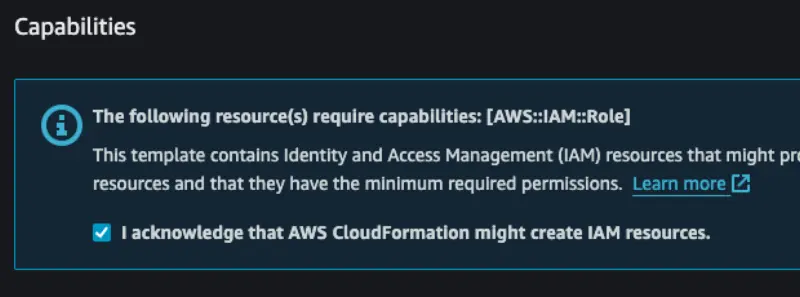
Then click the Create stack button:

The CloudFormation stack will take roughly 5 minutes to deploy, and once completed you can retrieve information required to continue from the Outputs tab:
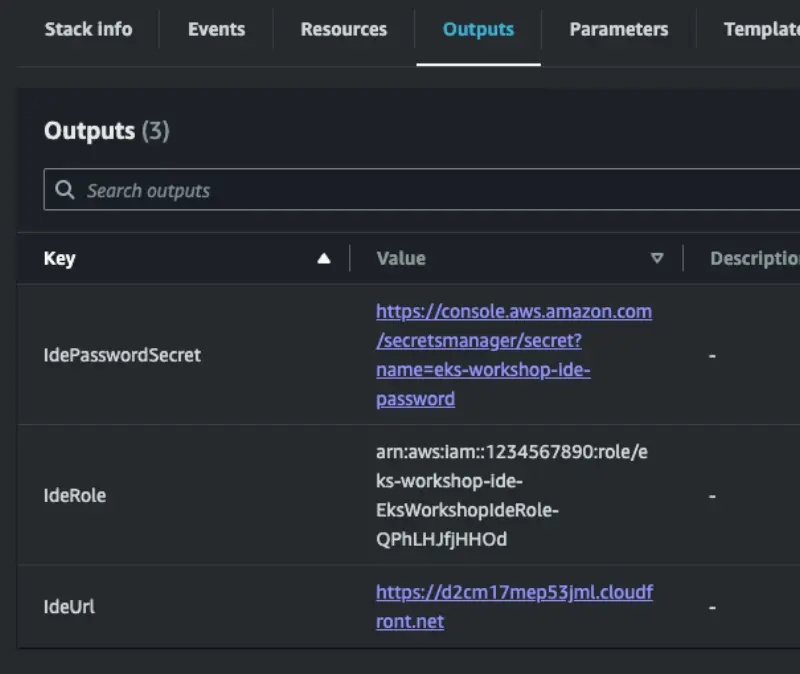
The IdeUrl output contains the URL to enter in your browser to access the IDE. The IdePasswordSecret contains a link to an AWS Secrets Manager secret that contains a generated password for the IDE.
To retrieve the password open the IdePasswordSecret URL and click the Retrieve button:

The password will then be available for you to copy:

Open the IDE URL provided and you will be prompted for the password:

After submitting your password you will be presented with the initial IDE screen:

The next step is to create an EKS cluster to perform the lab exercises in. Please follow one of the guides below to provision a cluster that meets the requirements for these labs: